Using SQLite with Node-RED on Windows
源自於 https://mpolinowski.github.io/docs/IoT-and-Machine-Learning/Home_Automation/2018-11-12--nodered-sqlite/2018-11-12/

- Installing SQLite, Creating your first Database
- Installing SQLite in Node-RED
- Visualizing Data from SQLite in Node-RED Dashboard
- Database Administration
- Flow Export
Installing SQLite
First scroll down to the newest pre-compiled version for your Operating System here and choose the bundle of command-line tools for managing SQLite database files, including the command-line shell program, the sqldiff.exe program, and the sqlite3_analyzer.exe program.
Unzip the folder, rename it something short - e.g. sqlite3 - and copy it to your C:\ partition. Now add the installation path to your system variables and run the sqlite3 command to see that it is working:
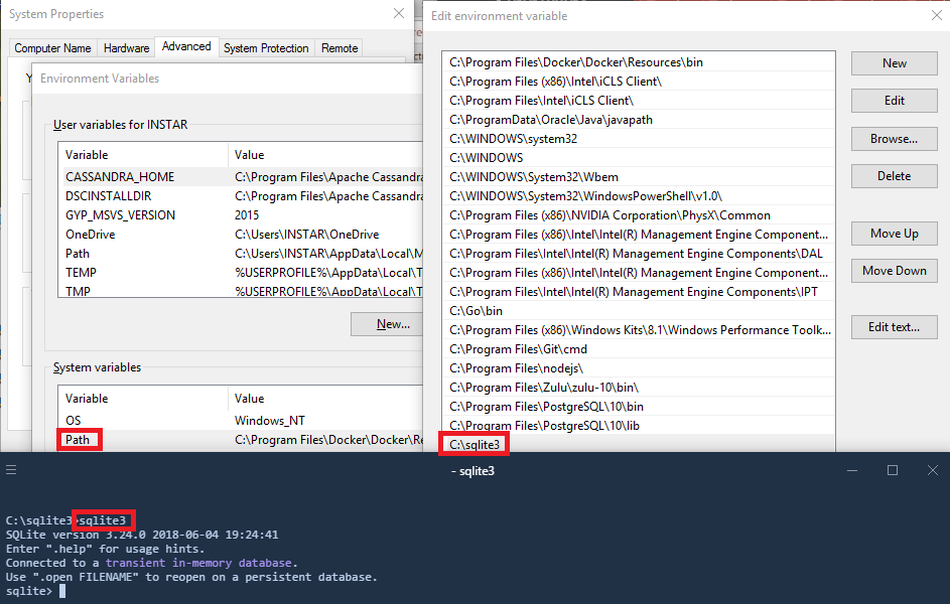
To exit the SQLite Shell again, type .quit
Creating your first Database
Navigate to the directory you want to store your data and type sqlite3 mydb.db and .databases:
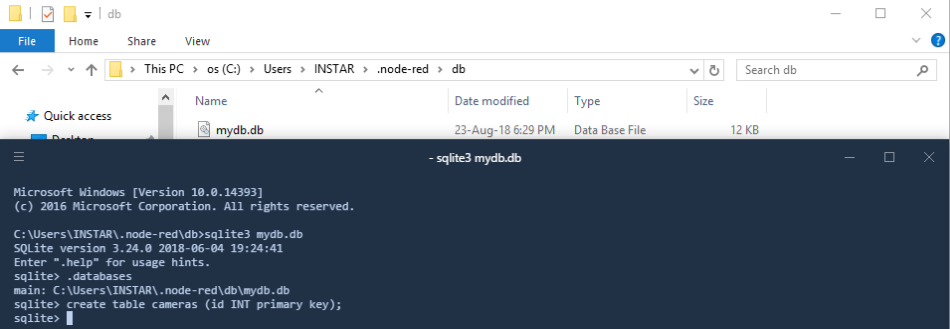
To add a table, type in the following create table cameras (id INT primary key);. This will create a table named cameras with a single (primary) column with the name of id that expects an integer value.
Installing SQLite in Node-RED
Open the Manage Palette menu inside Node-RED, switch to the Install tab and search for node-red-node-sqlite. More information can be found here. A new node called sqlite should appear on the left under the storage tab. In this flow, you’re going to send 5 SQL queries (CREATE, INSERT, SELECT, DELETE and DROP) to your SQLite database:
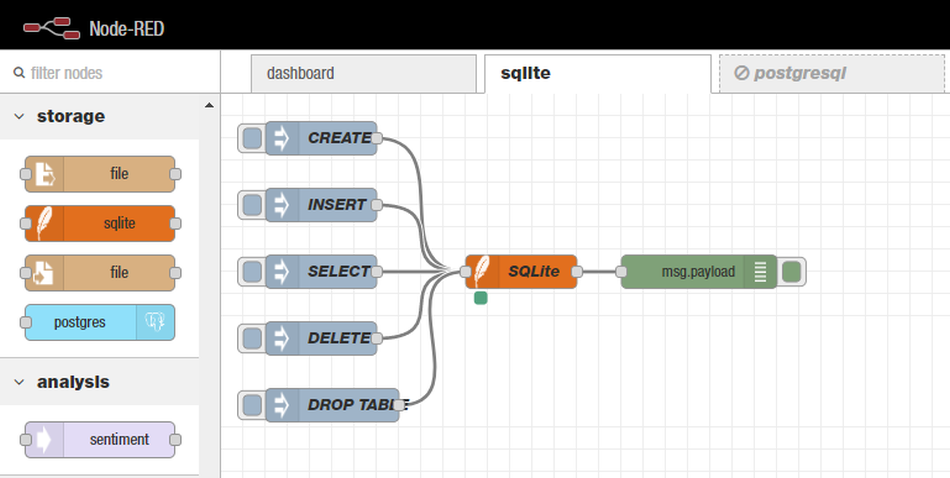
Double-click the SQLite Node press the Add new sqlitedb button and type in the absolute path to the SQLite Database we created earlier
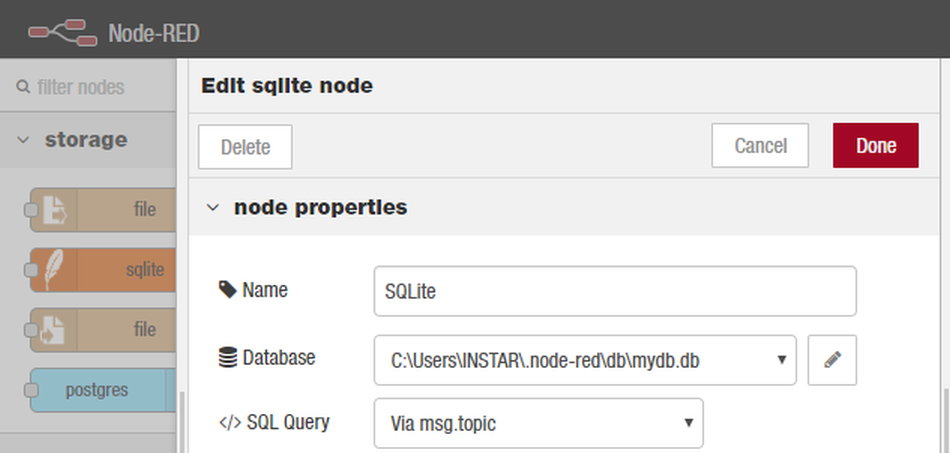
Configure your CREATE Inject Node as follows:
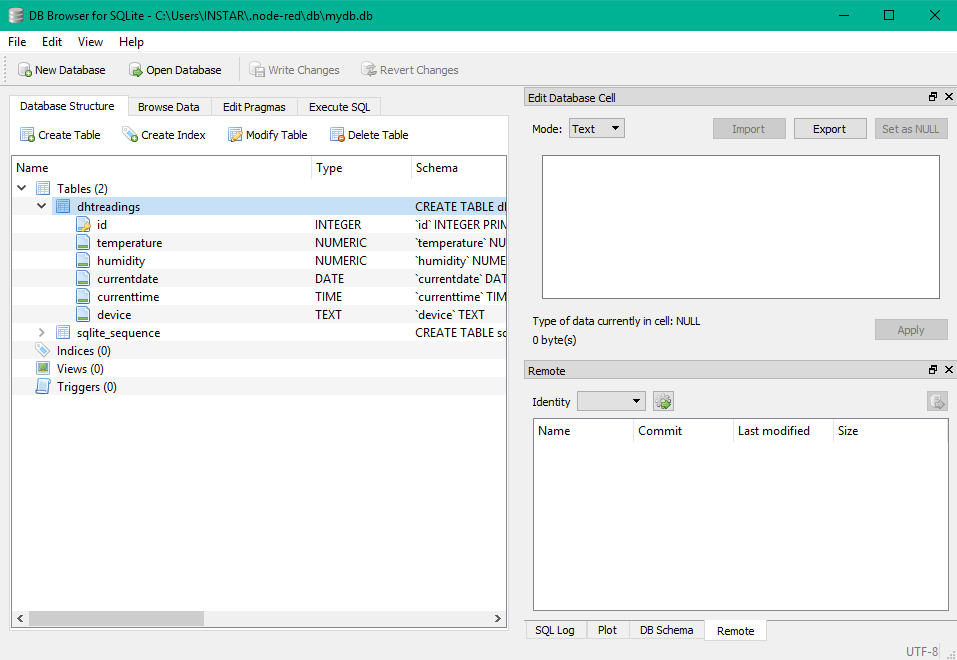
CREATE TABLE dhtreadings(id INTEGER PRIMARY KEY AUTOINCREMENT, temperature NUMERIC, humidity NUMERIC, currentdate DATE, currenttime TIME, device TEXT)
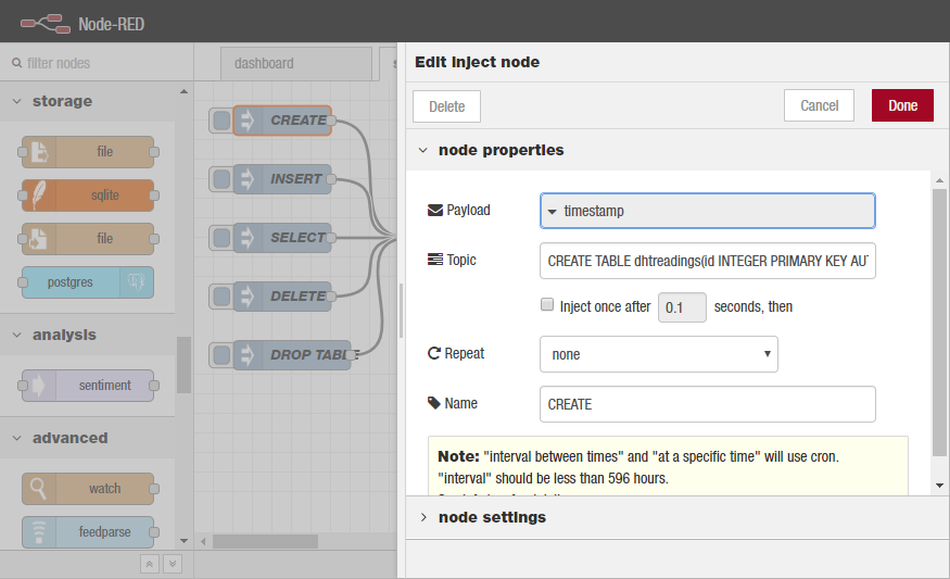
Repeat this step to create the following :
INSERT inject node
INSERT INTO dhtreadings(temperature, humidity, currentdate, currenttime, device) values(22.4, 48, date('now'), time('now'), 'manual')
SELECT inject node with
SELECT * FROM dhtreadings
DELETE inject node as follows
DELETE from dhtreadings
DROP inject node
DROP TABLE dhtreadings
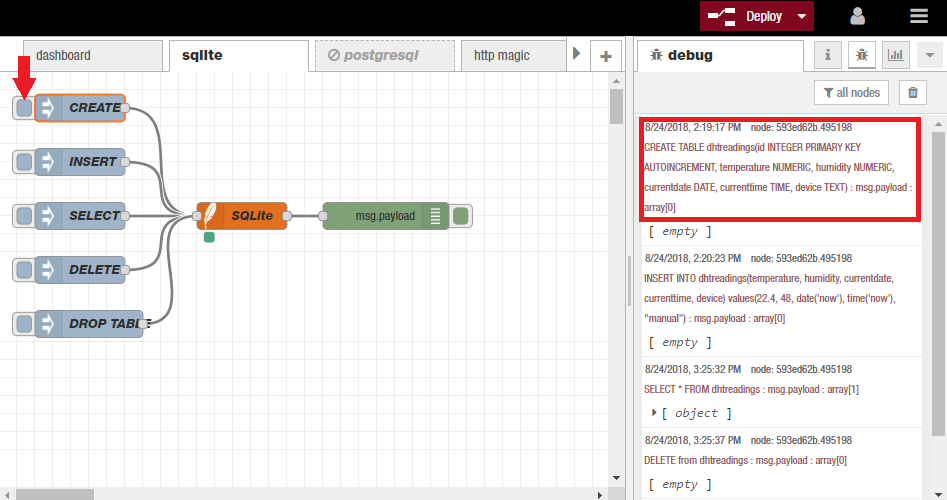
To save your application, you need to click the Deploy button on the top right corner (You might have to restart Node-RED) and your application is saved and ready. Open the debug window and press the first inject node to trigger the CREATE SQL query:
Visualizing Data from SQLite in Node-RED Dashboard
We are able to visualize the data by using the dashboard nodes.
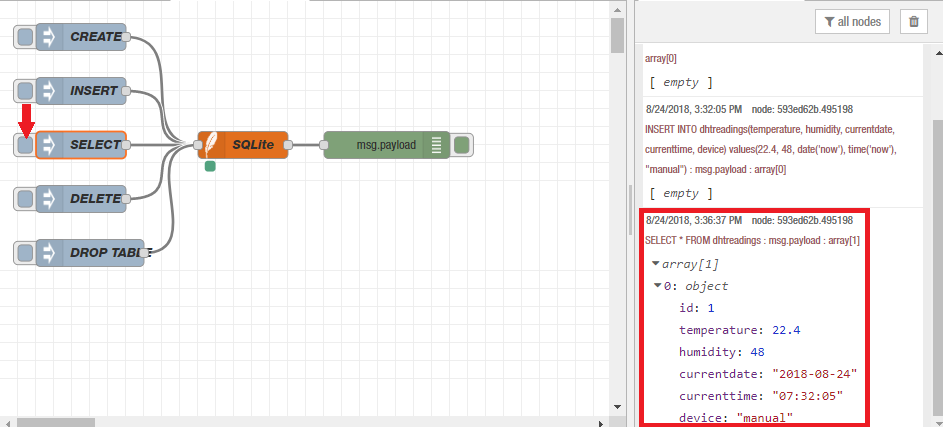
Injecting SELECT * FROM dhtreadings into our SQLite node gives us an array of records in the response, we can simply use the ui template node to parse the information we want.
For example, we would like to have a table showing the first 2 records, just simply connect the template UI node to the SQLite node:
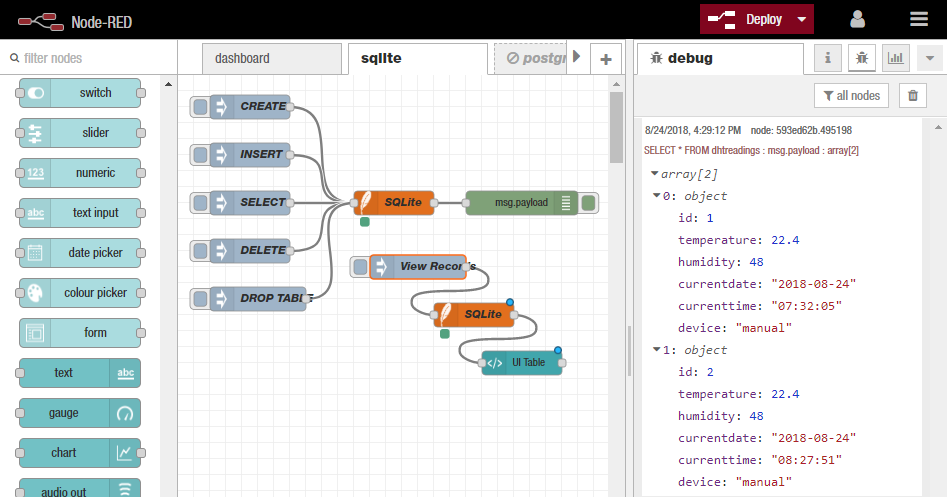
In the template node, enter the following code:
<table style='width:100%'>
  <tr>
    <th>Time</th>
    <th>Temp</th>
    <th>Hum</th>
  </tr>
  <tr ng-repeat='x in msg.payload | limitTo:2'>
    <td>{{msg.payload[$index].currenttime}}</td>
    <td>{{msg.payload[$index].temperature}}</td>
    <td>{{msg.payload[$index].humidity}}</td>
  </tr>
</table>
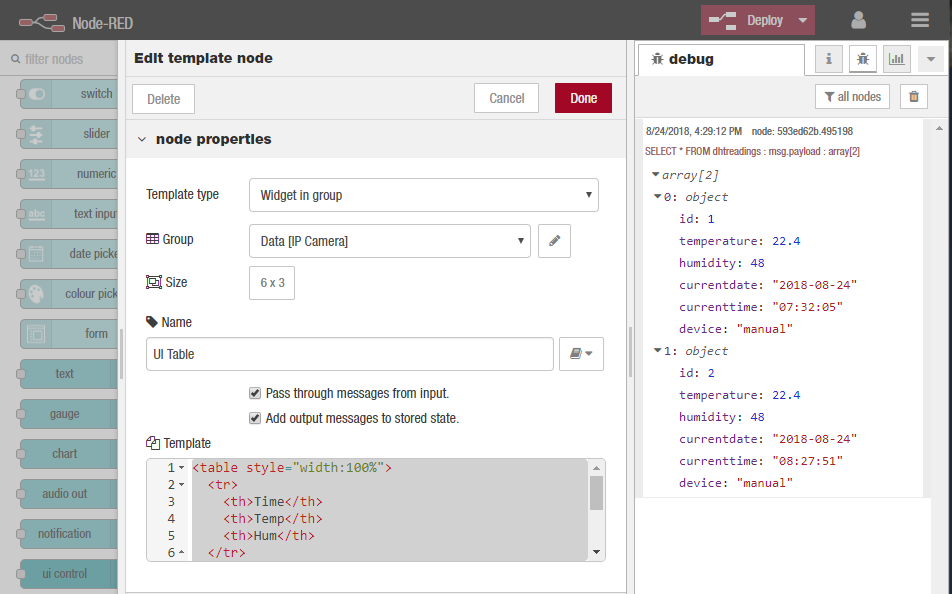
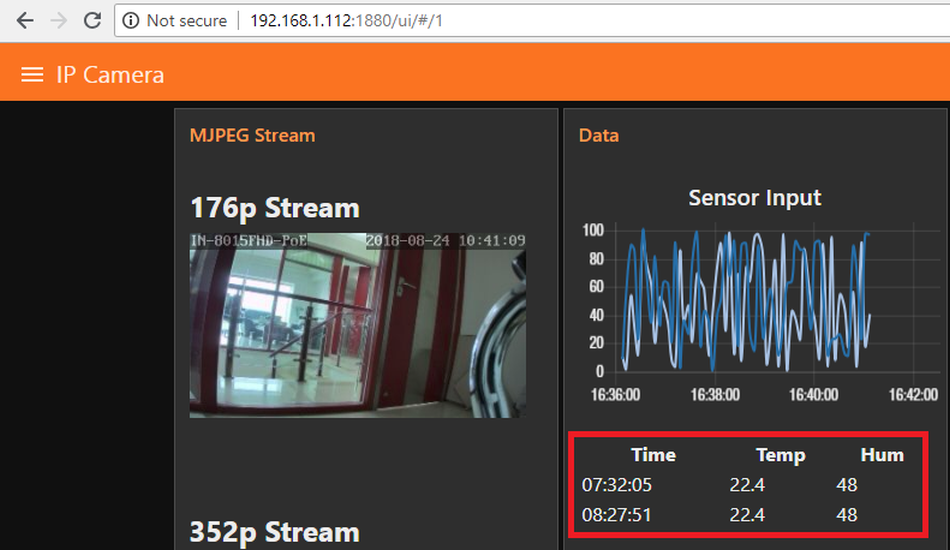
This code simply a table in HTML, and places the index, currenttime, temperature and humidity fields from msg.payload into the appropriate cells of the table using ng-repeat & limitTo. Once you deploy the nodes, the UI template node will update the table whenever SELECT * is sent to the SQLite node, and an array of records are returned from the SQLite node to the UI template node. The resulting table would look like this when you hit the URL http://192.168.1.112:1880/ui/:
Database Administration
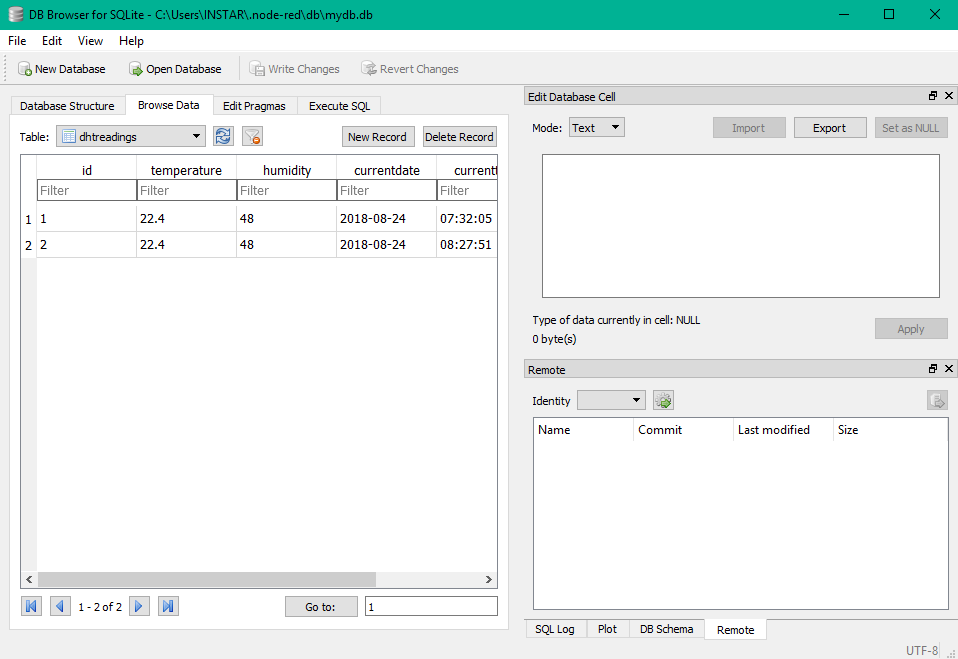
For the basic database administrative activities you can use web (php) based tools like phpLiteAdmin or go with an installable tool like SQLiteBrowser:
Flow Export
[{'id':'af8b3131.1b188','type':'tab','label':'sqlite','disabled':false,'info':''},{'id':'d7f0c96f.0d0588','type':'inject','z':'af8b3131.1b188','name':'CREATE','topic':'CREATE TABLE dhtreadings(id INTEGER PRIMARY KEY AUTOINCREMENT, temperature NUMERIC, humidity NUMERIC, currentdate DATE, currenttime TIME, device TEXT)','payload':'','payloadType':'date','repeat':'','crontab':'','once':false,'onceDelay':0.1,'x':90,'y':40,'wires':[['7f9d303d.adb45']]},{'id':'522e8f98.ac3de','type':'inject','z':'af8b3131.1b188','name':'INSERT','topic':'INSERT INTO dhtreadings(temperature, humidity, currentdate, currenttime, device) values(22.4, 48, date('now'), time('now'), \'manual\')','payload':'','payloadType':'date','repeat':'','crontab':'','once':false,'onceDelay':0.1,'x':90,'y':100,'wires':[['7f9d303d.adb45']]},{'id':'40fe756f.d7cd5c','type':'inject','z':'af8b3131.1b188','name':'SELECT','topic':'SELECT * FROM dhtreadings','payload':'','payloadType':'date','repeat':'','crontab':'','once':false,'onceDelay':0.1,'x':90,'y':160,'wires':[['7f9d303d.adb45']]},{'id':'3b1c34a.1639acc','type':'inject','z':'af8b3131.1b188','name':'DELETE','topic':'DELETE from dhtreadings','payload':'','payloadType':'date','repeat':'','crontab':'','once':false,'onceDelay':0.1,'x':90,'y':220,'wires':[['7f9d303d.adb45']]},{'id':'57370135.7daa1','type':'inject','z':'af8b3131.1b188','name':'DROP TABLE','topic':'DROP TABLE dhtreadings','payload':'','payloadType':'date','repeat':'','crontab':'','once':false,'onceDelay':0.1,'x':100,'y':280,'wires':[['7f9d303d.adb45']]},{'id':'7f9d303d.adb45','type':'sqlite','z':'af8b3131.1b188','mydb':'4e71ffcc.32ba8','sqlquery':'msg.topic','sql':'','name':'SQLite','x':270,'y':160,'wires':[['593ed62b.495198']]},{'id':'593ed62b.495198','type':'debug','z':'af8b3131.1b188','name':'','active':true,'tosidebar':true,'console':false,'tostatus':false,'complete':'false','x':430,'y':160,'wires':[]},{'id':'3735b0c8.22ff','type':'sqlite','z':'af8b3131.1b188','mydb':'4e71ffcc.32ba8','sqlquery':'msg.topic','sql':'','name':'SQLite','x':370,'y':300,'wires':[['2f6afcf0.58e874']]},{'id':'c8e55090.582db','type':'inject','z':'af8b3131.1b188','name':'View Records','topic':'SELECT * FROM dhtreadings','payload':'','payloadType':'date','repeat':'','crontab':'','once':false,'onceDelay':0.1,'x':300,'y':240,'wires':[['3735b0c8.22ff']]},{'id':'2f6afcf0.58e874','type':'ui_template','z':'af8b3131.1b188','group':'5be80bfc.629394','name':'UI Table','order':2,'width':'6','height':'3','format':'<table style=\'width:100%\'>\n <tr>\n <th>Time</th> \n <th>Temp</th> \n <th>Hum</th>\n </tr>\n <tr ng-repeat=\'x in msg.payload | limitTo:2\'>\n <td>{{msg.payload[$index].currenttime}}</td>\n <td>{{msg.payload[$index].temperature}}</td> \n <td>{{msg.payload[$index].humidity}}</td>\n </tr>\n</table>','storeOutMessages':true,'fwdInMessages':true,'templateScope':'local','x':430,'y':360,'wires':[[]]},{'id':'4e71ffcc.32ba8','type':'sqlitedb','z':'','db':'C:\\Users\\INSTAR\\.node-red\\db\\mydb.db'},{'id':'5be80bfc.629394','type':'ui_group','z':'','name':'Data','tab':'da0180c5.64fa9','order':3,'disp':true,'width':'6','collapse':false},{'id':'da0180c5.64fa9','type':'ui_tab','z':'','name':'IP Camera','icon':'photo_camera'}]


沒有留言:
張貼留言