2018年8月22日 星期三

ESP32 Async HTTP web server: websockets introduction

ESP32 Async HTTP web server: websockets introduction

In this tutorial we will check how to setup a websocket endpoint on a HTTP web server, using the ESP32 and running the Arduino core. The tests were performed using a DFRobot’s ESP32 module integrated in a ESP32 development board.

Introduction

In this tutorial we will check how to setup a websocket endpoint on a HTTP web server, using the ESP32 and running the Arduino core.
In order to setup the server, we will use the ESP32 async HTTP web server libraries. For a detailed tutorial on how to install the libraries and how to get started using them, please consult this previous post. Also, in the “Related Posts” section at the end of this post, you can find more tutorials using these libraries.
Besides many other features, the mentioned HTTP web server libraries allow us to setup a websocket endpoint using their asynchronous websocket plugin.
Note that we have already covered some websocket functionalities on previous posts. Nonetheless, in those tutorials, we were using a library that only implements the websockets functionalities.
The advantage of using the HTTP asynchronous web server and its websockets plugin is that we can add the websockets functionality without using another listening service or port [1].
In order words, this means that we can setup a server that is able to handle both websocket clients and also regular HTTP clients.
The websocket plugin exposes a lot of functionalities but, in this introductory tutorial, we will start with something simple. So, in our code, we will define a handling function that will be executed when websocket related events occur, more precisely when a client connects or disconnects.
For the client implementation, we will develop a very simple Python program. It will connect to the websocket endpoint, wait for a message, print it and disconnect.
In order to have access to the websocket related functionality in Python we will need to install a module. The mentioned module is called websocket-client and it can be easily installed with pip (a Python package installer) using the command below:
1
pip install websocket-client
For this tutorial to work, both the ESP32 and the computer that will run the Python code need to be connected to the same WiFi network.
The present tutorial is based on this example from the HTTP asynchronous webserver libraries, which covers a lot more functionalities. This is a very good example which I encourage you to try.
The tests were performed using a DFRobot’s ESP32 module integrated in a ESP32 development board.


The Arduino code

Includes and global variables

The first thing we need to do is including some libraries. One is the WiFi.h library, which will allow us to connect the ESP32 to a WiFi network.
Additionally, we will need the ESPAsyncWebServer.h library, which will expose all the HTTP webserver and websocket functionality.
1
2
#include <WiFi.h>
#include <ESPAsyncWebServer.h>
Since we will connect the ESP32 to a WiFi network, we need to store the credentials of that network, more precisely the network name and the password. We will save them in to global variables at the top of our code, so they are easy to change.
When testing the code, you should replace the placeholders below by the actual credentials of your WiFi network.
1
2
const char* ssid = "yourNetworkName";
const char* password = "yourNetworkPassword";
Next, we will need an object of class AsyncWebServer, which is needed to configure the HTTP asynchronous webserver.
Note that the constructor of this class receives as input the number of the port where the server will be listening for incoming HTTP requests. We will use port 80, which is the default HTTP port.
1
AsyncWebServer server(80);
Additionally, we will need an object of class AsyncWebSocket, which we will use to configure our websocket endpoint and corresponding handler function.
The constructor of this class receives as input the websocket endpoint. We will be listening on the “/ws” endpoint for this test, but you can try with another endpoint if you want, as long as you adapt the Python code accordingly.
1
AsyncWebSocket ws("/ws");


Setup

Moving on to the Arduino Setup function, we will start by opening a serial connection and connecting the ESP32 to the WiFi network. Remember that we have stored the WiFi network credentials as global variables.
Note that after the connection is established, we are printing the local IP assigned to the ESP32 on the network. The IP outputted here is the one that we need to use in the Python code, when specifying the websocket server address.
1
2
3
4
5
6
7
8
9
10
Serial.begin(115200);
 
WiFi.begin(ssid, password);
 
while (WiFi.status() != WL_CONNECTED) {
 delay(1000);
 Serial.println("Connecting to WiFi..");
}
 
Serial.println(WiFi.localIP());
Next, we will bind our websocket endpoint to a handler function that will be executed when websocket related events occur.
We do this by calling the onEvent method on our AsyncWebSocket object. As input this method receives a function that needs to respect this signature (defined by the type AwsEventHandler).
Note that the signature contemplates a lot of parameters, but we will only used a few for this tutorial. We will cover the creation of this handling function below.
1
ws.onEvent(onWsEvent);
Next we need to register our AsyncWebSocket object in the asynchronous HTTP web server. We do this by calling the addHandler method on the AsyncWebServer object, passing as input the address of the AsyncWebSocket object.
1
server.addHandler(&ws);
Finally, we call the begin method on the AsyncWebServer object, in order for it to start listening to incoming requests.
1
server.begin();


Websocket handling function

As mentioned before, the websocket events handling function needs to follow a predefined function signature, specified by the AwsEventHandler type. The whole function signature with all the parameters is shown below.
1
2
3
void onWsEvent(AsyncWebSocket * server, AsyncWebSocketClient * client, AwsEventType type, void * arg, uint8_t *data, size_t len){
// handling code
}
For this introductory tutorial, we will only focus on the second and third arguments. The second argument is a pointer to an object of class AsyncWebSocketClient and it is the object we will use to send data back to the client, when it connects to our server.
The third argument corresponds to a variable of type AwsEventType, which is an enum. This enum contains all the websocket events that can trigger the execution of our handling function.
Thus, we use this third argument to check what event has occurred and handle it accordingly.
In our example, we will handle two event types: the connection and the disconnection of the websocket client. We can do this handling with some simple conditional blocks applied to the event type function parameter.
So, in case the event corresponds to the connection of a client, the enumerated value will be WS_EVT_CONNECT.
1
2
3
if(type == WS_EVT_CONNECT){
//websocket client connected
}
When we receive that event, we will simply print a message to the serial port indicating a new client has connected and then send a “hello world” message back to the client.
We can send the message to the client by calling the text method on our client object, passing as input the text to send. Note that since we have access to a pointer to the client object, then we need to use the -> operator in order to access the text method.
1
2
3
4
5
if(type == WS_EVT_CONNECT){
 
    Serial.println("Websocket client connection received");
    client->text("Hello from ESP32 Server");
}
For the client disconnection event, we receive the enumerated value WS_EVT_DISCONNECT, so we will have another condition looking for this. In this case, we will simply print a message to the serial port indicating the disconnection of the client.
1
2
3
} else if(type == WS_EVT_DISCONNECT){
    Serial.println("Client disconnected");
}
The full handling function can be seen below.
1
2
3
4
5
6
7
8
9
10
11
12
void onWsEvent(AsyncWebSocket * server, AsyncWebSocketClient * client, AwsEventType type, void * arg, uint8_t *data, size_t len){
 
  if(type == WS_EVT_CONNECT){
 
    Serial.println("Websocket client connection received");
    client->text("Hello from ESP32 Server");
 
  } else if(type == WS_EVT_DISCONNECT){
    Serial.println("Client disconnected");
 
  }
}


The final Arduino code

The final Arduino source code can be seen below. Note that since this is a asynchronous solution, we don’t need to periodically call any client handling function in the Arduino main loop.
1
2
3
4
5
6
7
8
9
10
11
12
13
14
15
16
17
18
19
20
21
22
23
24
25
26
27
28
29
30
31
32
33
34
35
36
37
38
39
40
41
#include <WiFi.h>
#include <ESPAsyncWebServer.h>
 
const char* ssid = "yourNetworkName";
const char* password =  "yourNetworkPassword";
 
AsyncWebServer server(80);
AsyncWebSocket ws("/ws");
 
void onWsEvent(AsyncWebSocket * server, AsyncWebSocketClient * client, AwsEventType type, void * arg, uint8_t *data, size_t len){
 
  if(type == WS_EVT_CONNECT){
 
    Serial.println("Websocket client connection received");
    client->text("Hello from ESP32 Server");
 
  } else if(type == WS_EVT_DISCONNECT){
    Serial.println("Client disconnected");
 
  }
}
 
void setup(){
  Serial.begin(115200);
 
  WiFi.begin(ssid, password);
 
  while (WiFi.status() != WL_CONNECTED) {
    delay(1000);
    Serial.println("Connecting to WiFi..");
  }
 
  Serial.println(WiFi.localIP());
 
  ws.onEvent(onWsEvent);
  server.addHandler(&ws);
 
  server.begin();
}
 
void loop(){}


The Python code

The Python code will be really simple. We start by importing the previously installed websocket module, so we can create the websocket client.
1
import websocket
Then, we need to create an object of class WebSocket, which is defined in the module we have just imported.
1
ws = websocket.WebSocket()
Then, we establish the connection to the server by calling the connect method on the WebSocket object.
This method receives as input a string with the websocket endpoint address, in the format below. You should change #ESP_IP# by the IP of your ESP32 (remember that it will be printed in the serial port when the Arduino program connects to the WiFi network) and #websocket_endpoint# by the server endpoint (in the Arduino code we have configured it to be “/ws”):
You can check the method call with the endpoint for my ESP32. Note that the local IP assigned to your ESP32 will most likely be different from mine.
1
ws.connect("ws://192.168.1.78/ws")
Then, to receive data from the server, we simply call the recv method on our WebSocket object. This method will return the data received from the server, in case there is any data available. Otherwise, it will block waiting for the data.
After receiving the data, we will print it, to later check if it matches the message we specified in the ESP32 Arduino program.
1
2
result = ws.recv()
print(result)
To finalize, we call the close method on our WebSocket object to disconnect from the server.
1
ws.close()
The final complete code can be seen below.
1
2
3
4
5
6
7
8
9
import websocket
 
ws = websocket.WebSocket()
ws.connect("ws://192.168.1.78/ws")
 
result = ws.recv()
print(result)
 
ws.close()


Testing the code

To test the whole system, start by uploading the Arduino code to your ESP32 using the Arduino IDE. Once the procedure finishes, open the Arduino IDE serial monitor.
After the ESP32 successfully connects to the WiFi network, it should print the local IP assigned to it. That is the IP that you should use on the Python code, when specifying the websocket server address.
After this, simply run the Python code. As indicated in figure 1, it should output the message we have specified in the Arduino code. Note that the Python client immediately disconnects after receiving the message.
ESP32 Async HTTP web server web socket From Python client.png
Figure 1 – Output of the Python program.
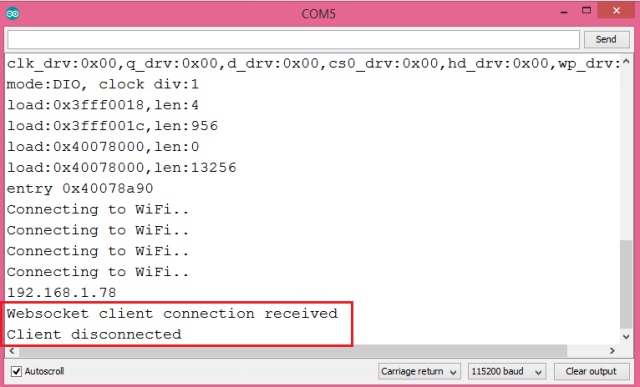
If you go back to the Arduino IDE serial monitor, you should get the an output similar to figure 2, which shows that both the client connection and disconnection events were detected.
ESP32 async webserver websocket detect python client connect disconnect events.png
Figure 2 – Websocket client connection and disconnection events detected on the ESP32.


Related Posts


References

Advertisements

2018年8月21日 星期二

ESP8266-DS18B20-MQTT-Node-RED

ESP8266 Arduino DS18B20 Temperature sensor.  Node-RED , MongoDB


Gmail需要降低安全性  讓node-red 有權限存取Gmail

/*
MQTT temperature with ESP8266 and DS18b20
*/
#include <ESP8266WiFi.h>
#include <PubSubClient.h>
#include <OneWire.h>
#include <DallasTemperature.h>

/* Wiring DS18B20
=============================================================================
Black =  GND    RED = 3.3V   Yellow = Data  D7
=============================================================================
*/

#define ONE_WIRE_BUS D7

// Update these with values suitable for your network.
//const char *ssid = "PTS-2F";
//const char *pass = "";
const char *ssid = "74170287";
const char *pass = "24063173";
//const char *ssid =  "yourSSID";     // change according to your Network - cannot be longer than 32 characters!
//const char *pass =  "yourPASSWORD"; // change according to your Network


#define MQTTid              ""                           //id of this mqtt client
#define MQTTip              "broker.mqtt-dashboard.com"  //ip address or hostname of the mqtt broker
#define MQTTport            1883                         //port of the mqtt broker
#define MQTTuser            "alex9ufo"                   //username of this mqtt client
#define MQTTpsw             "alex9981"                   //password of this mqtt client
//#define MQTTuser          "your_username"              //username of this mqtt client
//#define MQTTpsw           "your_password"              //password of this mqtt client
#define MQTTpubQos          2                            //qos of publish (see README)
#define MQTTsubQos          1                            //qos of subscribe

OneWire oneWire(ONE_WIRE_BUS);
DallasTemperature sensor(&oneWire);

//Variables
long lastMsg = 0;
char jsonChar[100];
float celcius = 0;
//=============================================================================
boolean pendingDisconnect = false;
void mqttConnectedCb(); // on connect callback
void mqttDisconnectedCb(); // on disconnect callback
void mqttDataCb(char* topic, byte* payload, unsigned int length); // on new message callback

WiFiClient wclient;
PubSubClient client(MQTTip, MQTTport, mqttDataCb, wclient);

//=============================================================================
void mqttConnectedCb() {
  Serial.println("connected");
 
  // Once connected, publish an announcement...
  client.publish("alex9ufo/outTopic/DS18B20/json", jsonChar, MQTTpubQos, true); // true means retain
  // ... and resubscribe
  client.subscribe("alex9ufo/inTopic", MQTTsubQos);

}
//=============================================================================
void mqttDisconnectedCb() {
  Serial.println("disconnected");
}
//=============================================================================
void mqttDataCb(char* topic, byte* payload, unsigned int length) {

  /*
  you can convert payload to a C string appending a null terminator to it;
  this is possible when the message (including protocol overhead) doesn't
  exceeds the MQTT_MAX_PACKET_SIZE defined in the library header.
  you can consider safe to do so when the length of topic plus the length of
  message doesn't exceeds 115 characters
  */
  char* message = (char *) payload;
  message[length] = 0;

  Serial.print("Message arrived [");
  Serial.print(topic);
  Serial.print("] ");
  Serial.println(message);
  /*
  // Switch on the LED if an 1 was received as first character
  if (message[0] == '0') {
     digitalWrite(BUILTIN_LED, LOW);   // Turn the LED on (Note that LOW is the voltage level
     // but actually the LED is on; this is because
     Serial.print("Received 0 , BMP280 sensor read Pressure ");
    }
   if (message[0] == '1') {
     digitalWrite(BUILTIN_LED, HIGH);   // Turn the LED off (Note that HIGH is the voltage level
     // but actually the LED is on; this is because
     Serial.print("Received 1 , BMP280 sensor read Temperature ");
   }
    if (message[0] == '2') {
     digitalWrite(BUILTIN_LED, HIGH);   // Turn the LED off (Note that HIGH is the voltage level
     // but actually the LED is on; this is because
     Serial.print("Received 2 , BMP280 sensor read Altimeter ");
   }
   */
 }
//======================================================
void setup_wifi() {
  delay(10);
  // We start by connecting to a WiFi network
  Serial.println();
  Serial.print("Connecting to ");
  Serial.println(ssid);

  WiFi.begin(ssid, pass);

  while (WiFi.status() != WL_CONNECTED) {
    delay(500);
    Serial.print(".");
  }

  Serial.println("");
  Serial.println("WiFi connected");
  Serial.println("IP address: ");
  Serial.println(WiFi.localIP());
 
}
//======================================================
void setup() {
  Serial.begin(115200);
  setup_wifi();
  sensor.begin();
}
//======================================================
void process_mqtt() {
  if (WiFi.status() == WL_CONNECTED) {
    if (client.connected()) {
      client.loop();
    } else {
    // client id, client username, client password, last will topic, last will qos, last will retain, last will message
      if (client.connect(MQTTid, MQTTuser, MQTTpsw, MQTTid "/status", 2, true, "0")) {
          pendingDisconnect = false;
          mqttConnectedCb();
      }
    }
  } else {
    if (client.connected())
      client.disconnect();
  }
  if (!client.connected() && !pendingDisconnect) {
    pendingDisconnect = true;
    mqttDisconnectedCb();
  }
}
//======================================================
void loop() {
  process_mqtt();
  long now = millis();
  if (now - lastMsg > 5000) { 
     lastMsg = now;
     // Get the current temperature from the DS18b20 sensor
     sensor.requestTemperatures();
     celcius=sensor.getTempCByIndex(0);
     char tChar[10];
     dtostrf( celcius, 6, 2, tChar);
     // Publish the temperature to our topic
     // Convert data to JSON string
     String json =
     "{\"data\":{"
      "\"DS18B20\": \"" + String(celcius) + "\"}"
      "}";
      // Convert JSON string to character array
      json.toCharArray(jsonChar, json.length()+1);

      if  (client.connected()) {
           Serial.print("Publish message: ");
           Serial.println(json);
           // Publish JSON character array to MQTT topic
          client.publish("alex9ufo/outTopic/DS18B20/json",jsonChar);
          client.publish("alex9ufo/outTopic/DS18B20/temperature", tChar);
         }
      } // if  (now - lastMsg > 5000))
}   //Loop
//======================================================

ESP8266-DS18B20-MQTT

ESP8266-DS18B20-MQTT


A sketch for the ESP8266 (or more directly NodeMCU) reading a temp from DS18B20 and pushing it to MQTT built using the Arduino IDE


#include <PubSubClient.h>
#include <DallasTemperature.h>
#include <ArduinoOTA.h>
#include <OneWire.h>
#include <ESP8266WiFi.h>
#include <ESP8266mDNS.h>

/*********WiFi settings*******/
//#define WLAN_SSID "YOUR_WIFI_SSID"
//#define WLAN_PASS "YOUR_WIFI_PASSPHRASE"
#define WLAN_SSID "74170287"
#define WLAN_PASS "24063173"
#define MQTT_SERVERPORT  1883                   // use 8883 for SSL
/*****************************/

/*********MQTT Settings*******/
//#define mqtt_server "YOUR_MQTT_SERVER"
#define mqtt_server "broker.mqtt-dashboard.com"

//#define mqtt_user ""
//#define mqtt_password ""
#define mqtt_user            "alex9ufo"                   //username of this mqtt client
#define mqtt_password        "alex9981"                   //password of this mqtt client

#define OWBUS D7
OneWire oneWire(OWBUS);
DallasTemperature sensors(&oneWire);
DeviceAddress tempsens;

WiFiClient ESPClient;
PubSubClient client(ESPClient);

/*     MAIN  */

void setup() {
  Serial.begin(115200);
  setup_wifi();

  setup_OTA();
  setup_sensors();
  client.setServer(mqtt_server, 1883);
  #define mac  WiFi.macAddress()
  #define mqtt_topic (String("alex9ufo/device/" + mac + "/temperature").c_str())

}

void setup_sensors(){
sensors.begin();
  //Serial.println(sensors.getDeviceCount(), DEC);
  if (!sensors.getAddress(tempsens, 0)) Serial.println("Unable to find address for Device 0");
  sensors.setResolution(tempsens, 9);

}

void setup_wifi() {
  WiFi.mode(WIFI_STA);
  WiFi.begin(WLAN_SSID, WLAN_PASS);
  while (WiFi.waitForConnectResult() != WL_CONNECTED) {
    delay(5000);
    ESP.restart();
  }
  //Serial.println(WiFi.localIP());

}


void setup_OTA() {
  delay(10);
  //ArduinoOTA.setHostname("Lounge");

  ArduinoOTA.onStart([](){
    Serial.println("Start");
  });
  ArduinoOTA.onEnd([](){
    Serial.println("\nEnd");
  });
 ArduinoOTA.onProgress([](unsigned int progress, unsigned int total) {
    Serial.printf("Progress: %u%%\r", (progress / (total / 100)));
});
  ArduinoOTA.onError([](ota_error_t error) {
    Serial.printf("Error[%u]: ", error);
    if (error == OTA_AUTH_ERROR) Serial.println("Auth Failed");
    else if (error == OTA_BEGIN_ERROR) Serial.println("Begin Failed");
    else if (error == OTA_CONNECT_ERROR) Serial.println("Connect Failed");
    else if (error == OTA_RECEIVE_ERROR) Serial.println("Receive Failed");
    else if (error == OTA_END_ERROR) Serial.println("End Failed");
  });
ArduinoOTA.begin();
 

}


void reconnect() {
  while (!client.connected()){
    Serial.println("Attempting MQTT connection.....");
    if (client.connect("ESP8266Client", mqtt_user, mqtt_password)) {
      Serial.println("connected");   


    } else{
      Serial.println("Failed, rc=");
      Serial.println(client.state());
      delay(5000);
    }
  }
}


long lastMsg = 0;
float temp = 0.0;

void loop() {
  ArduinoOTA.handle();


  long now = millis();
  if (now - lastMsg > 10000){ 
    lastMsg = now;
    sensors.requestTemperatures();
    float tempC = sensors.getTempC(tempsens);
    char tChar[10];
    dtostrf( tempC, 6, 2, tChar);
    if (!client.connected()) {
      reconnect();
    }
    client.publish(mqtt_topic, tChar);
  }
  client.loop();
}

2018年8月11日 星期六

DIY Arduino Wind Speed Meter Anemometer Project

DIY Arduino Wind Speed Meter Anemometer Project

Arduino Wind Speed Meter Anemometer
If you are interested in creating a DIY Arduino wind speed meter or anemometer to monitor the wind strength in your location, you might be interested in this quick tutorial I have put together to create a very basic Arduino wind speed meter, that my family use on a daily basis to capture wind meter readings in mph and record the fastest speed since the last reset.
Having recently moved to a coastal location the winds now play a larger role in our everyday life than they did when we lived more inland and it wasn’t long after moving in that we all wondered how strong the winds actually were that were battering our house during the recent winter storms.

DIY Arduino Wind Speed Meter – Research

A quick bit of research online provided a wealth of ready-made weather stations you can purchase ranging from £40 or $50 up to and above $500. Although they provide a quick and easy way to start monitoring wind speed, most of the installations monitored other variables such as rainfall, which at the moment we are not interested in. They also recorded the wind speed at quite long intervals which and nearly all didn’t provide any way of tinkering or modifying the data output in any way, only viewing it on the provided screen or purchasing additional hardware to explore the data to a computer. So I decided to create a simple DIY Arduino wind speed monitor that we could tweak over time and eventually upgrade to a Raspberry Pi and send the data to a website wirelessly.
Arduino Wind Speed Meter Anemometer
The first stage of this project however was to create the basic DIY Arduino wind speed monitor to check that the parts functioned as required and write the code. A quick look online revealed that a number of wind speed meters or anemometers were available to purchase, ranging in price from just a few dollars up to over $200. I initially opted for the budget end of the scale and purchased a Maplin Anemometer (pictured above) which is sold as a replacement part for the Maplin weather station in the UK and is available to purchase price at around £3.

DIY Arduino Wind Speed Meter – Anemometer

After receipt of the Maplin Anemometer it soon became obvious that you get what you pay for, and the quality of the anemometer would not have lasted long in the conditions in our coastal location. Finally after some more research I opted for a much more robust anemometer from the Adafruit website (product ref: 1733 pictured below) which cost around $45 or £39 and provides a rugged wind speed meter anemometer that has been designed for outside use and easily allows you to measure wind speed using a wide variety of different mini PCs and micro-controllers.
DIY Arduino Wind Speed Meter Anemometer
As you can see from the image above the Adafruit anemometer is supplied with a length of 3 core cable and three connections. A black wire to power and signal ground, a brown wire for power which can be anything from 7-24v DC depending on your needs and availability, and a third blue wire that provides measurements via analog voltage. The Adafruit anemometer is capable of measuring wind speeds up to 70 m/s or 156mph which should be adequate for our location and if the speeds ever get that high will probably blow our house down before the anemometer breaks.
DIY Arduino Wind Speed Meter Anemometer Project
For the micro-controller part of the project I used an old Arduino Uno development board that had been collecting dust in a drawer and combined it with a £2.50 16×2 LCD screen I had previously purchased via eBay for a readout.
DIY Arduino Anemometer
The next stage was to create the Arduino code which I created by modifying code already available from the Hackerscapes website to record mph rather than m/s and added extra code to support the 16×2 LCD display. After the initial setup was wired together and the family were staring at the screen for some time to catch a glimpse at the fastest wind speed. I made another alteration to the code that now recorded the highest wind speed since the last reset of the Arduino Uno, and positioned this in the lower right hand side of the LCD as the max wind speed, while still showing the real time wind speed on the left of the screen.
I mounted the DIY anemometer on one of our fences away from any buildings to try and provide it with enough space to be able to get a clean wind speed reading and connected it to the Arduino Uno which was positioned inside the house using a 15 m length of cable. The Arduino Uno is powered by a mains 12v adapter and now provides us and visitors with hours of fun trying to guess how fast the speed will be during the night or when any storms hit us during the day.

DIY Arduino Wind Speed Meter Code

/*
Arduino Wind Speed Meter Anemometer mph – Adafruit anemometer (product ID 1733).
Modified code created March 2016 from original code created by Joe Burg 11th November 2014 at http://www.hackerscapes.com/ with help from Adafruit forum users shirad
*/
//Initialise LCD display
#include <LiquidCrystal.h>
LiquidCrystal lcd(8, 9, 4, 5, 6, 7);
int serial_in;
//Setup Variables
double x = 0;
double y = 0;
double a = 0;
double b = 0;
const int sensorPin = A1; //Defines the pin that the anemometer output is connected
const int numReadings = 10; //Defines number of reading to calculate average windspeed
int readings[numReadings]; // the readings from the analog input
int readIndex = 0; // the index of the current reading
int totalWind= 0; // the running total
int averageWind = 0; // the average
int inputPin = A1;
int sensorValue = 0; //Variable stores the value direct from the analog pin
float sensorVoltage = 0; //Variable that stores the voltage (in Volts) from the anemometer being sent to the analog pin
float sensorVoltage2 = 0; //Variable that stores the voltage (in Volts) from the anemometer being sent to the analog pin
float windSpeed = 0; // Wind speed in meters per second (m/s)
float voltageConversionConstant = .004882814; //This constant maps the value provided from the analog read function, which ranges from 0 to 1023, to actual voltage, which ranges from 0V to 5V
int sensorDelay = 2000; //Delay between sensor readings, measured in milliseconds (ms)
//Anemometer Technical Variables
//The following variables correspond to the anemometer sold by Adafruit, but could be modified to fit other anemometers.
float voltageMin = .4; // Mininum output voltage from anemometer in mV.
float windSpeedMin = 0; // Wind speed in meters/sec corresponding to minimum voltage
float voltageMax = 2.0; // Maximum output voltage from anemometer in mV.
float windSpeedMax = 32; // Wind speed in meters/sec corresponding to maximum voltage
void setup()
{
for (int thisReading = 0; thisReading < numReadings; thisReading++) {
readings[thisReading] = 0;
}
//Setup LCD display with welcome screen
lcd.begin(16, 2);
lcd.print(“Geeky Gadgets”);
lcd.setCursor(0, 1);
lcd.print(“Windspeed Sensor”);
delay(2500);
lcd.clear();
lcd.setCursor(0, 0);
Serial.begin(9600); //Start the serial connection
}
//Anemometer calculations
void loop()
{
sensorValue = analogRead(sensorPin); //Get a value between 0 and 1023 from the analog pin connected to the anemometer
// subtract the last reading:
totalWind = totalWind – readings[readIndex];
// read from the sensor:
readings[readIndex] = sensorValue;
// add the reading to the total:
totalWind = totalWind + readings[readIndex];
// advance to the next position in the array:
readIndex = readIndex + 1;
sensorVoltage2 = sensorValue * voltageConversionConstant; //Convert sensor value to actual voltage
// if we’re at the end of the array…
if (readIndex >= numReadings) {
// …wrap around to the beginning:
readIndex = 0;
// calculate the average:
averageWind = totalWind / numReadings;
sensorVoltage = averageWind * voltageConversionConstant; //Convert sensor value to actual voltage
//Convert voltage value to wind speed using range of max and min voltages and wind speed for the anemometer
if (sensorVoltage <= voltageMin) {
windSpeed = 0; //Check if voltage is below minimum value. If so, set wind speed to zero.
} else {
windSpeed = ((sensorVoltage – voltageMin) * windSpeedMax / (voltageMax – voltageMin))*2.232694; //For voltages above minimum value, use the linear relationship to calculate wind speed.
}
}
//Max wind speed calculation
x = windSpeed;
if (x >= y) {
y = x;
} else {
y = y;
}
//Max voltage calculation
a = sensorVoltage;
if (a >= b) {
b = a;
} else {
b = b;
}
//Print voltage and windspeed to serial
Serial.print(“Voltage: “);
Serial.print(sensorVoltage);
Serial.print(“Average: “);
Serial.print(averageWind);
Serial.print(“\t”);
Serial.print(“Wind speed: “);
Serial.println(windSpeed);
//Display Wind Speed results to LCD with Max wind speed
lcd.setCursor(0, 0);
lcd.print(“Wind Speed=”);
lcd.setCursor(11, 0);
lcd.print(windSpeed);
lcd.setCursor(0, 1);
lcd.print(b);
lcd.setCursor(5, 1);
lcd.print(readIndex);
lcd.setCursor(7, 1);
lcd.print(“Max=”);
lcd.setCursor(11, 1);
lcd.print(y);
delay(sensorDelay);
}
I have embedded the code above which you are free to use and please if you do see any more tweaks that can be made please let me know in the comments below. The Arduino wind speed monitor has been created to provide a rough estimate of the wind speed and should not be used for any important meteorological calculations.

DIY Arduino Wind Speed Meter – Components :

– Adafruit Anemometer (product ref: 1733) – £39 or $44
– Arduino Uno or similar such as the new Arduino 101 or Genuino – £28 or $40 (cheaper clones are available)
– Arduino 16×2 LCD screen with keypad £2.50 or $3.60
– 15m of 3 core cable – £10 or $14
– 12v Mains Power Supply £5 – $7
– Arduino IDE software loaded on to a PC or Mac – Free
In the next stage of the project I hope to develop the system even further during my spare time and upgrade the Arduino Uno to a Raspberry Pi, which will then be capable of transmitting the wind speed data to a website for logging. As soon as this is completed that stage of the build I will keep you updated and add a link to it here once complete. Below is a list of components you will require to complete this easy to build Arduino wind speed meter. As questions about the build please leave them in the comments below and I will do my best to answer them.

Measuring cumulative rainfall with a rain gauge.

Measuring cumulative rainfall with a rain gauge.

IMG_2249
I’ve spent about six years living in Utah, where the climate is arid and drought is a constant concern. According to the U.S. Drought Monitor, about a quarter of the state continues to experience severe (D2) level drought. The region often doesn’t receive the rainfall it needs to keep its reservoirs at capacity.
In keeping with my interest in humans’ relationship with their physical environment and ecological processes, I decided that I wanted my next project to collect information about precipitation.
Using a rain gauge that my friend Joao Costa had lent me, I was able to measure the accumulation of rainfall over time.
IMG_2231
A rain gauge is a self-emptying tipping bucket that collects and dispenses water. It allows you to display daily and accumulated rainfall as well as the rate of rainfall. The gauge essentially acts as a switch, making contact when a specified amount of water enters the bucket.
Rain collects at the top of the bucket, where a funnel collects and channels the precipitation into a small seesaw-like container. After 0.011 inches (0.2794 mm) of rain has fallen, the lever tips and dumps the collected water. An electrical signal is sent back to the Arduino where the digital counter can record what’s called the “interrupt input.”
IMG_2233
Once I decided that I wanted to measure the precipitation using the rain gauge, I did some research into the particular gauge I was using. According to its datasheet, the rain gauge connected to an adaptor, which then only connected to two center conductors. I hooked up the rain bucket like so:
IMG_2245
The thing that is really powerful about the rain gauge is that it can measure the cumulative rainfall over a period of time. I decided that I wanted to connect the LCD screen to the Arduino as an output in order to display the amount of precipitation.
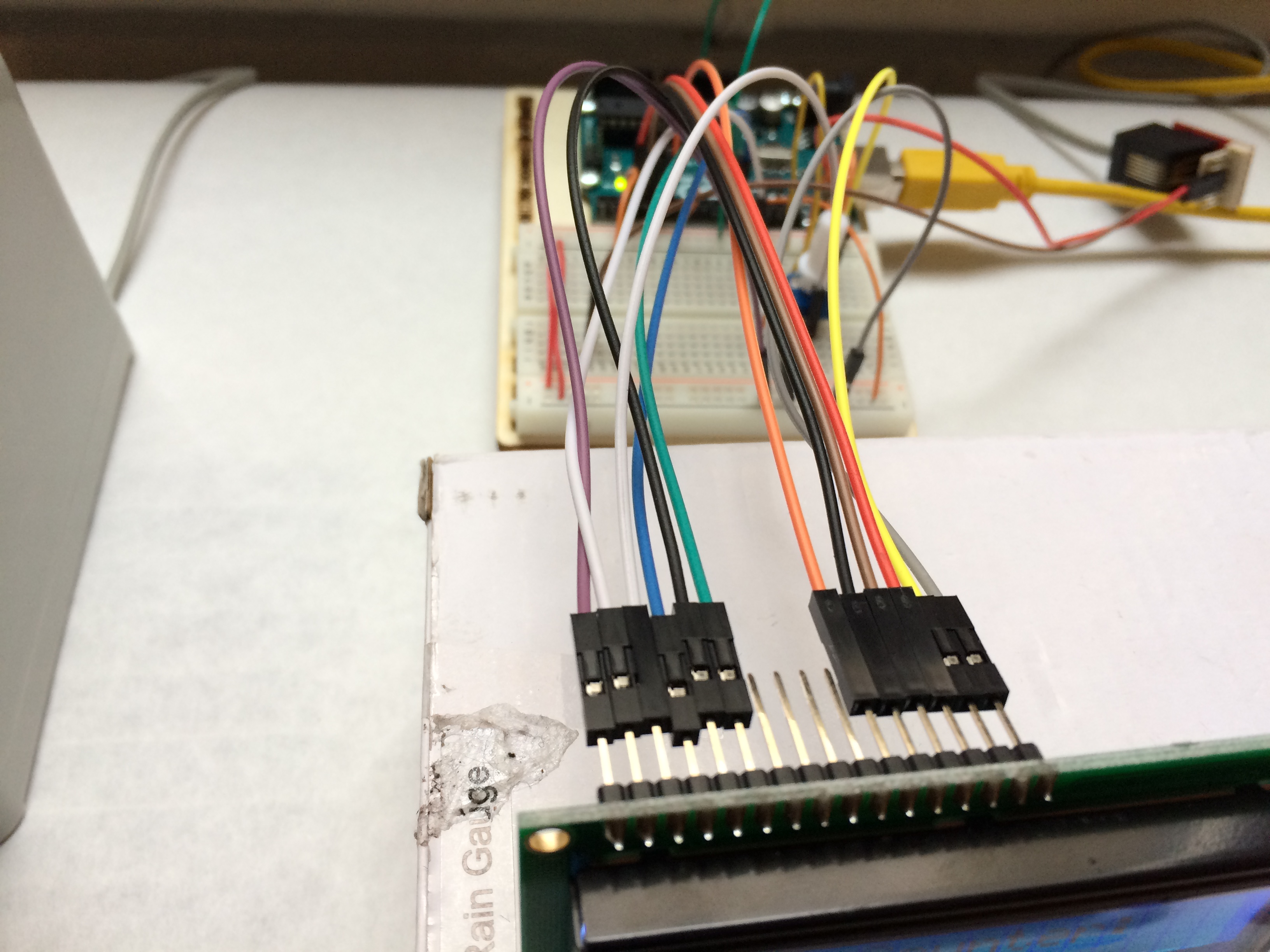
Connecting the LCD screen was very difficult because of the number of wires that needed to be connected to the screen (eight!). The LCD screen also required that I set up a potentiometer to control the brightness of the screen, so I added that to the breadboard.
IMG_2250
Once the setup was complete, I wrote the Arduino program that would display the precipitation information I wanted. I figured out how to set up the LCD screen to display text on a single line.`
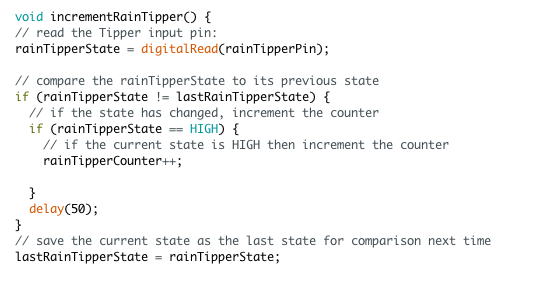
Next, I needed to figure out how to display the actual amount of precipitation that had fallen into the bucket. To do so, I created a variable “rainTipperCounter.” Every time the see-saw in the gauge filled with water and tipped, the count went up by one.
Screen Shot 2015-09-29 at 7.49.16 PM
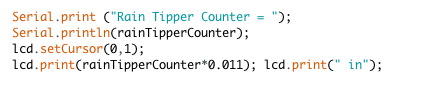
I knew that each time the count increased, 0.011 inches of rainfall had collected in the rain gauge. I programmed the LCD to display the rainTipperCounter, multiplied by 0.011, so that the actual amount of accumulated precipitation was displayed.
Screen Shot 2015-09-29 at 7.51.36 PM
IMG_2247
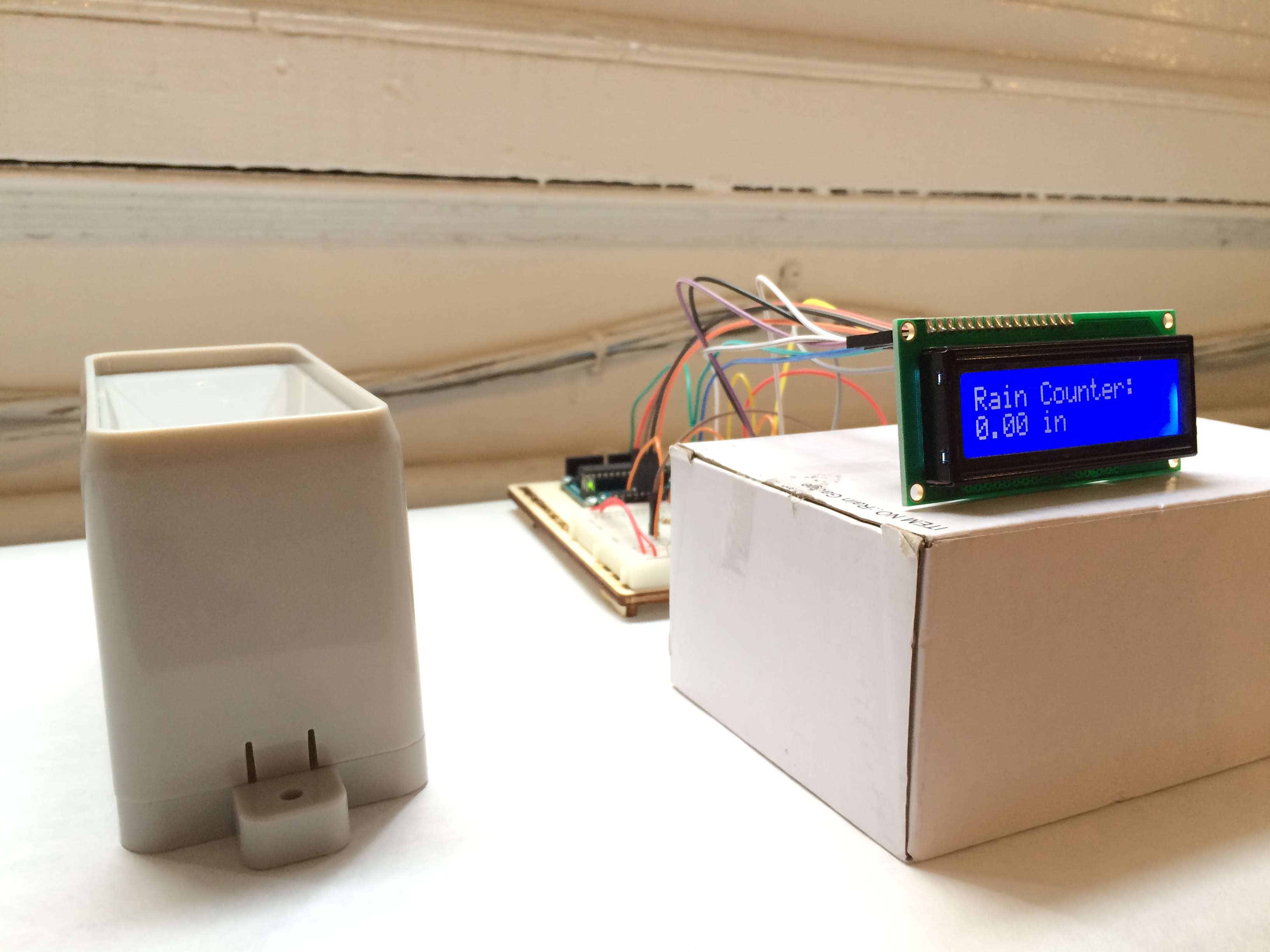
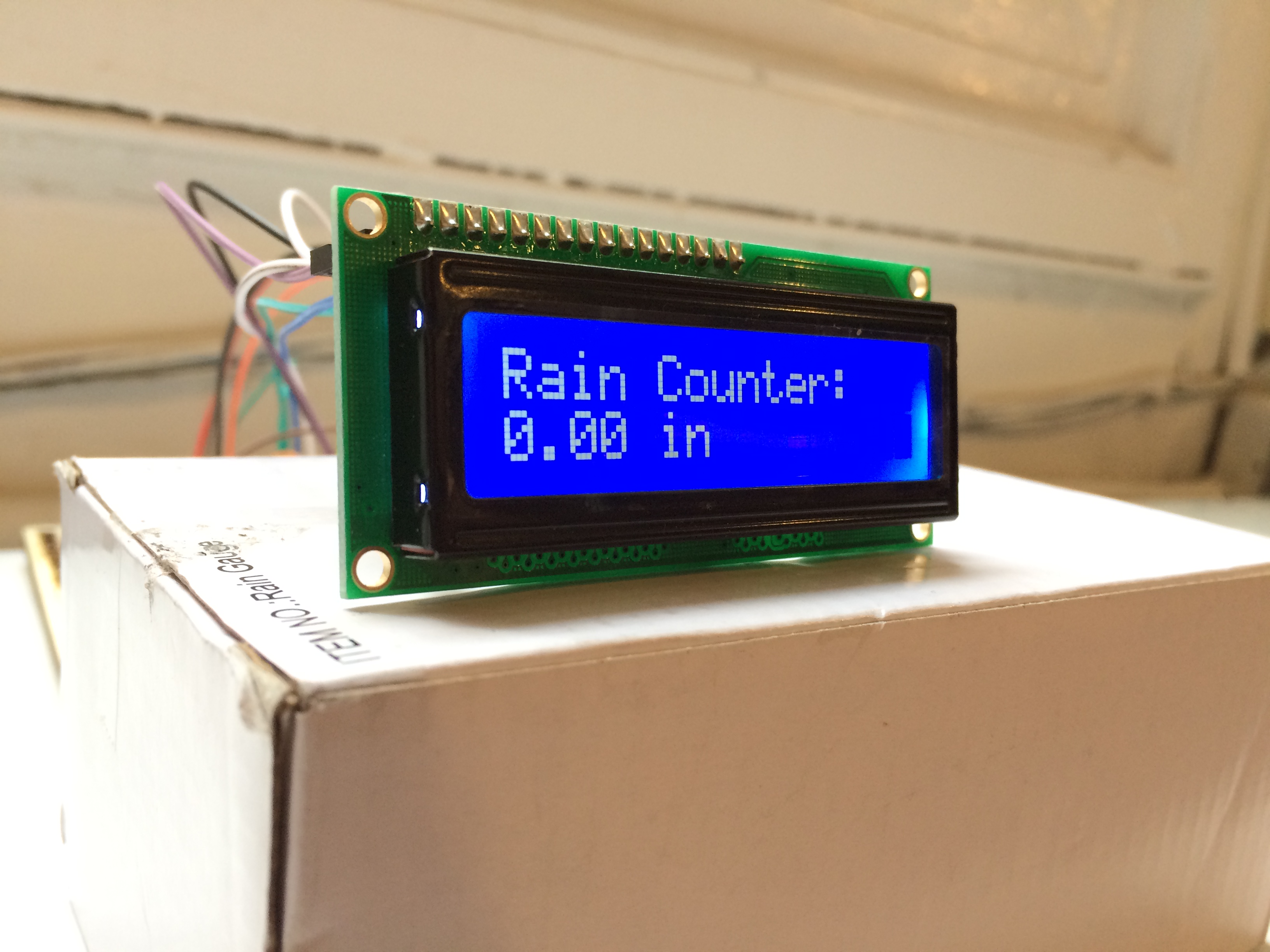
And just like that, I’d set up a simple rain gauge that tracked cumulative precipitation. It wasn’t raining outside today so I had to test the switch by pouring water into the gauge. Here’s how the final product turned out:

  清除項目編譯快取 執行 flutter clean 重新取得套件依賴 執行 flutter pub get 完整重新編譯並執行 flutter run 1. 新增專案套件 (pubspec.yaml) 在 Flutter 專案根目錄下的 pubspec.yaml 中,新增 ...